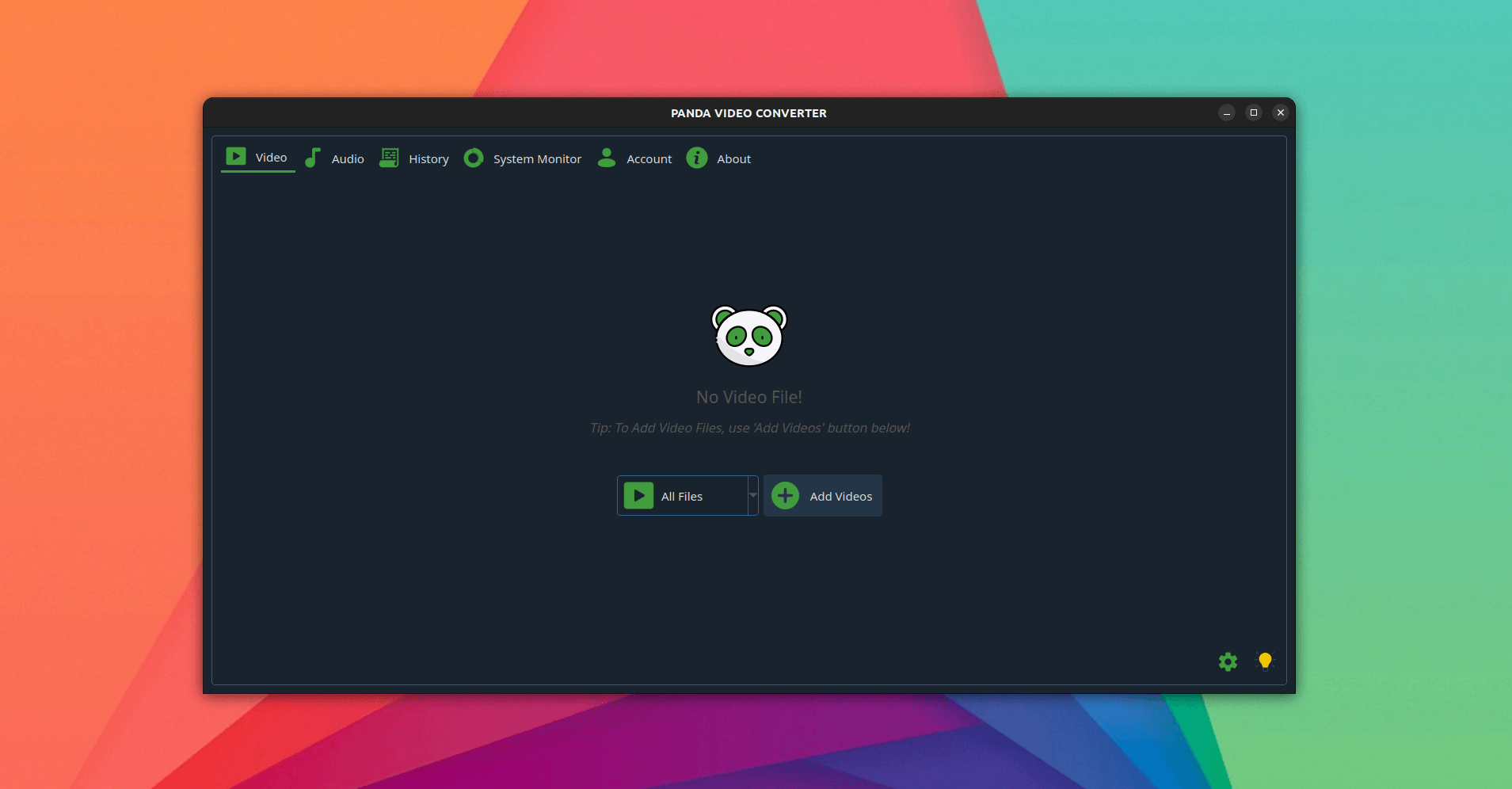
FormatLab is a desktop video and audio converter for Linux and Windows. Convert between MP4, MKV, MOV, AVI, WebM, MP3, FLAC, WAV and forty-odd other formats with GPU-accelerated encoding, batch queues and drag-and-drop — no ads, no watermarks, and no upload to a cloud server. Everything is converted on your own machine.
Supported formats
Video: MP4, MKV, MOV, AVI, WebM, WMV, FLV, MPEG, MPG, M2TS, 3GP, VOB, TS, OGV, F4V, MXF, ASF, HEVC, M2V, MTS and WTV.
Audio: MP3, AAC, WAV, FLAC, M4A, OGG, WMA, Opus, AIFF, DTS, AC3, MP2, VOC, RA, TTA, WV, CAF and M4R.
Codecs: H.264/AVC, H.265/HEVC, VP9, MPEG-4 and MPEG-2 for video; AAC, MP3, FLAC, Opus, Vorbis, AC3 and PCM for audio.
What FormatLab does
- Convert video and audio between any of the formats above.
- Compress — with real bitrate and quality controls, so you decide where the line between smaller and worse sits rather than accepting whatever a website chose.
- Batch conversion — drag in a whole folder, set the output format once, and let the queue run.
- GPU acceleration — optional, on NVIDIA, AMD or Intel hardware, which is what keeps large UHD encodes practical.
- Surround sound preserved — 5.1 and 7.1 audio survives rather than being downmixed to stereo.
- Up to 8K source files.
Installing FormatLab on Linux
From the Snap Store:
sudo snap install formatlabFrom Flathub:
flatpak install flathub com.warlordsoftwares.formatlabOr as a portable AppImage from the latest release.
Installing on Windows
Windows 10 and 11, 64-bit. Download the installer from the project's latest release.
System requirements
- Linux — Ubuntu 20.04+, Debian 11+, Fedora 36+, Arch, or anything that runs Flatpak, Snap or AppImage
- Windows — Windows 10 or 11, 64-bit
- RAM — 4 GB minimum, 8 GB recommended for 4K work
- GPU acceleration — optional; NVIDIA, AMD or Intel with current drivers
How it compares to other converters
Online converters such as Zamzar and CloudConvert cap file sizes, make you wait on an upload, and keep your media on someone else's server. HandBrake is excellent and free but focused on video transcoding with a dense interface. Raw FFmpeg gives you maximum power and zero discoverability. Paid Windows converters are subscription-priced and Windows-first.
FormatLab is a friendly front end over FFmpeg that also covers audio formats, converts locally with no size limit, and is a one-time purchase.
Frequently asked questions
Does FormatLab upload my files anywhere?
No. All conversion happens locally with FFmpeg on your own machine — no upload, no file-size cap, no server-side queue. It works offline and it is safe for confidential footage.
Can it convert multiple files at once?
Yes. Drag in a folder, set the output format once, and the whole queue is converted.
Does converting lose quality?
Any lossy re-encode loses something. FormatLab exposes bitrate and quality controls so you can stay visually lossless, and a format-only change — MKV to MP4, for instance — can often be done without re-encoding the video stream at all.
Does it keep 5.1 or 7.1 surround sound?
Yes. Multi-channel audio is preserved rather than downmixed.
Is it free?
Free to download and use for everyday conversions. A one-time Pro upgrade unlocks unlimited batch queues and the full feature set, with no subscription. See plans and pricing.
Related write-ups
Panda Video Converter covers similar ground with a focus on 4K and hardware acceleration. To get the files in the first place, see 4KTUBE or DL-YouTube.